






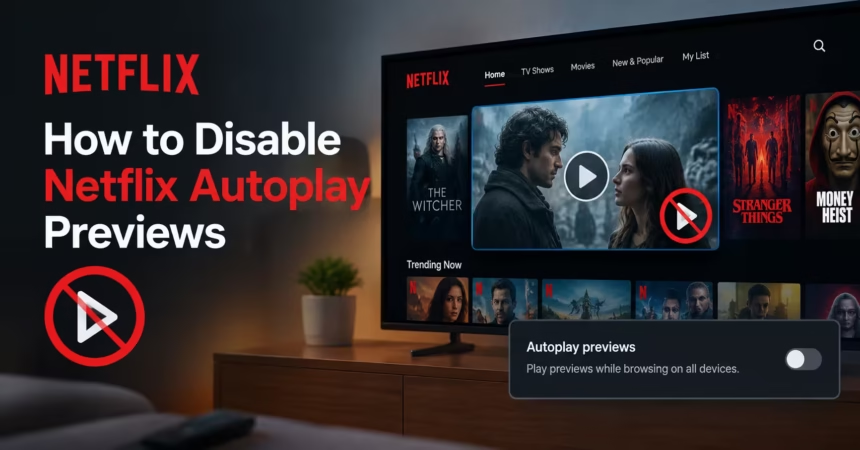
To stop Netflix previews from playing automatically while you browse, open your Netflix profile settings and turn off Autoplay previews. You can also disable Autoplay next episode if you do not want Netflix to start another episode automatically after one ends.
These settings apply to each Netflix profile separately. If multiple people use the same account, repeat the steps for every profile where you want autoplay turned off.
Netflix Has Two Different Autoplay Settings
Netflix offers separate controls for browsing previews and next episodes.
| Setting | What it does |
|---|---|
| Autoplay previews | Stops trailers and previews from starting while you browse Netflix |
| Autoplay next episode | Stops Netflix from automatically starting the next episode in a series |
If you want a quieter browsing experience, turn off Autoplay previews. If you also want to avoid binge-watching by accident, disable Autoplay next episode.
How to Turn Off Netflix Autoplay Previews on Mobile
Use these steps on the Netflix app for Android, iPhone, or iPad.
- Open the Netflix app.
- Select the profile you want to change.
- Tap My Netflix in the bottom-right corner.
- Tap the profile name or profile icon at the top.
- Select Manage Profiles.
- Choose the profile you want to edit.
- Turn off the switch beside Autoplay Previews.
- On iPhone or iPad, tap Done to save the change.
Netflix should stop playing previews automatically while you browse on that profile.
How to Turn Off Netflix Autoplay Previews in a Web Browser
You can also change the setting from a computer, phone, or tablet browser.
- Go to the Netflix website and sign in.
- Click or tap your profile icon.
- Select Account.
- Under Profiles, choose the profile you want to edit.
- Select Playback settings.
- Turn off Autoplay previews while browsing on all devices.
- Save the change if Netflix shows a Save button.
The setting is profile-specific, so check that you edited the correct profile.
How to Stop Netflix From Playing the Next Episode Automatically
To stop Netflix from automatically starting another episode, use the same profile settings.
On Mobile
- Open Netflix and select your profile.
- Tap My Netflix.
- Tap your profile name.
- Choose Manage Profiles.
- Select the profile.
- Turn off Autoplay Next Episode.
- Tap Done on iPhone or iPad.
In a Web Browser
- Sign in to Netflix.
- Go to Account.
- Choose the relevant profile under Profiles.
- Open Playback settings.
- Turn off Autoplay next episode in a series on all devices.
- Save the change.
After this, Netflix should wait for you to select the next episode manually.
How to Turn Off Autoplay on a Smart TV
Many smart TV and streaming-device Netflix apps do not show the complete autoplay settings directly in the TV interface. The easiest method is to change the setting through the Netflix mobile app or website.
After changing it:
- Open Netflix on the TV.
- Switch to a different profile and then return to your profile.
- If autoplay continues, sign out of Netflix on the TV and sign in again.
- Restart the TV or streaming device if needed.
The profile setting should sync to supported devices after a refresh.
Why Are Netflix Previews Still Playing?
If previews continue after you disabled them, try these fixes.
Make Sure You Changed the Correct Profile
Netflix settings are linked to profiles, not the entire account. If you use a different profile on your TV, that profile may still have autoplay enabled.
Refresh Netflix
Netflix says changes may need a refresh before they appear on all devices. Switch to another profile and switch back, or sign out and sign in again.
Update the Netflix App
Open the App Store, Google Play Store, or your device’s app store and install available Netflix updates.
Restart the Device
Turn the device fully off, wait around 15 seconds, then turn it back on. This can resolve temporary app or syncing issues.
Check Device Support
Netflix notes that preview autoplay is not supported on iPads and some older TVs or streaming devices. On unsupported devices, you may not see the preview setting or may not notice any change.
Can You Disable Netflix Autoplay for Every Profile at Once?
No. Netflix autoplay controls are usually managed profile by profile. If you have several profiles, you need to repeat the process for each one.
This is useful when one person wants autoplay enabled while another prefers to browse quietly.
Can You Turn Netflix Autoplay Back On?
Yes. Follow the same steps and turn on either setting again:
- Autoplay Previews
- Autoplay Next Episode
Your preference will update across compatible devices using that Netflix profile.
Frequently Asked Questions
How do I stop Netflix trailers from playing automatically?
Open the profile settings and turn off Autoplay previews. On the web, go to Account, select the profile, open Playback settings, and disable preview autoplay.
How do I stop Netflix from playing the next episode?
Go to the profile’s Playback settings and turn off Autoplay next episode in a series on all devices.
Why does Netflix autoplay still work after I disabled it?
You may have changed a different profile, or the device may need to refresh. Switch profiles, sign out and back in, update Netflix, or restart the device.
Does turning off autoplay apply to every device?
The setting applies to the selected Netflix profile across supported devices. It does not automatically change other profiles on the account.
Can I disable only previews but keep next episodes playing?
Yes. Netflix lets you control preview autoplay and next-episode autoplay separately.
Final Thoughts
To stop Netflix previews, disable Autoplay Previews in the profile settings. To stop episodes from continuing automatically, turn off Autoplay Next Episode as well.
These two simple settings give you more control over browsing and watching, especially on shared family accounts.


